|
Overview
If you are trying to reach a computer that has gone to sleep, iTeleport can try to wake it for you. There are many factors that determine whether a computer can be woken or not, which are outside iTeleport's Control. By following the troubleshooting steps, you can try to ensure your computer will wake up. Attempting to Wake
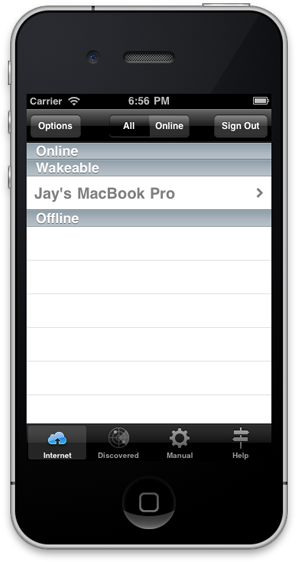
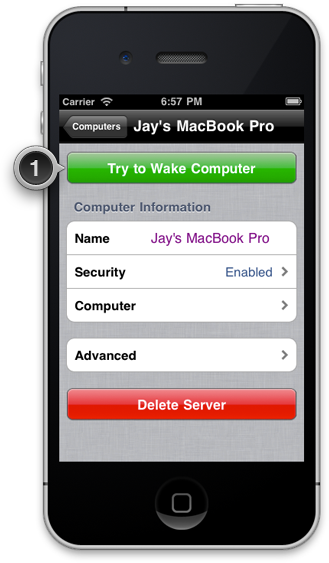
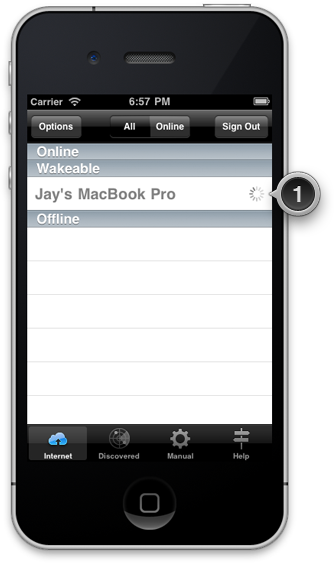
If your computer cannot be woken up, keep the following in mind: 1) Your computer must support being woken. This feature is called Wake-On-LAN and requires a wired network connection. In newer Macs, Wake-On-Wireless-LAN is supported, and can work over a wireless network connection. 2) Your computer should be plugged into a power outlet. On Macs, this is a requirement for the waking feature to work. 3) If you're trying to wake a sleeping MacBook, its lid must be open. MacBooks do not power on when the lid is closed. You can put a MacBook to sleep without closing the lid by going to the Apple > Sleep menu in Mac OS X. 4) The button marked Try To Wake Computer only works on the Computers tab in iTeleport. 5) Another device needs to wake up the sleeping computer on the same network, and this could be either an iPhone / iPad running iTeleport or a computer running iTeleport Connect. This can be done in either one of two ways:
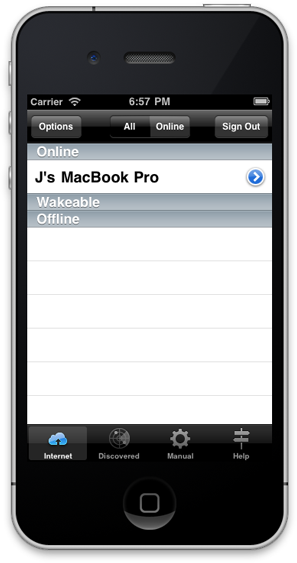
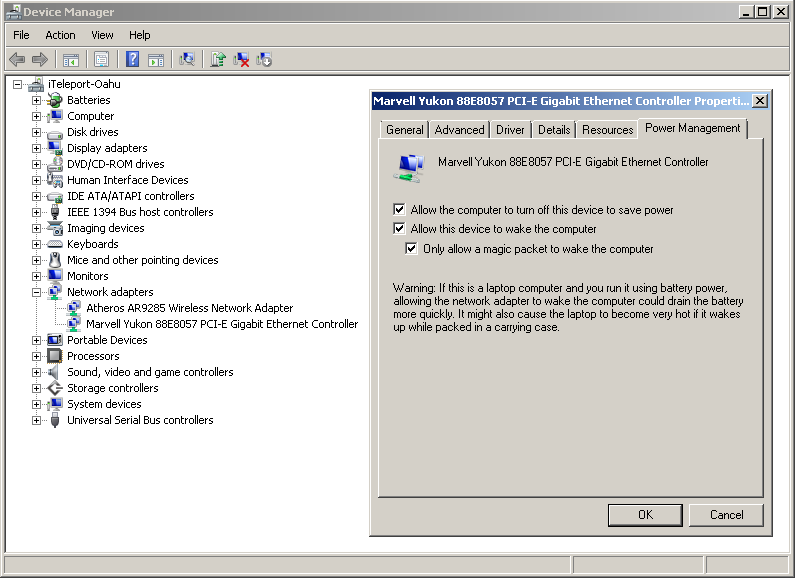
iTeleport Connect must be been running on your sleeping computer for it to come back Online once it's awake. If you're on a PC, you'll need to enable Wake-On-LAN in Control Panel for your Network card if it isn't turned on already (Control Panel > Device Manager > Network Card > Properties > Power Management > Enable "Allow this device to wake the computer"). On a Mac, make sure you've turned on Wake for network access in System Preferences > Energy Saver. Waking Lion and Mountain Lion
Lion and Mountain Lion do not currently support Wake On LAN properly. With the latest update to Lion, and with all versions of Mountain Lion, when Mac OS wakes up from sleep through network activity, it enters a state called "dark wake". In this state, Screen Sharing is active, but doesn't work 100% correctly. If a connection is made to Screen Sharing, it is highly likely that it will result in Screen Sharing ending up in a corrupt state where it just gets stuck. This is why connecting via the Discovered tab may sometimes get stuck at Authenticating. iTeleport Connect disconnects from Gmail when going to sleep, and reconnects when waking up. Part of the wakeup process involves connecting to the Screen Sharing server to make sure it's active and available, and iTeleport Connect too gets stuck connecting to it, just like iTeleport does. We have two solutions to this problem: a) Use iTeleport Connect (v6.0.0.2) in which we forcibly wake your Mac from dark wake to full wake. To trigger this forced wake, you must connect from iTeleport on iOS using the Computers tab. b) If that doesn't work for you, you can also disable dark by following these steps, although we recommend just following option (a):
|